Sign in to Muse and change your email
Get your account, sign in and follow the images to replace the delivered email with your own.
Get the account → Sign in → Add your email → Remove the old email → Finish.
On this page
- Order number
- Use it to find delivery details and contact support.
- Delivered account / old email
- The account received in your order, used for the first sign-in.
- Personal / new email
- An inbox you can access, used for sign-in after linking.
Find your account in the order
- Open Orders on this site and refresh payment and delivery status.
- After delivery, copy and save the delivery details.
- Guests use the purchasing browser; members use the purchasing account.
Retrieve the Muse account from your order. No code redemption is needed.
Open my orders ↗Follow the sign-in method in your delivery
Open the Muse sign-in link in your delivery instructions and use the delivered account first.
When delivery includes an inbox link
Email verification code
- Enter the delivered email and request a code.
- Open the supplied inbox link and find the latest code. Use the delivered mailbox login if required.
- Enter the code in Muse to finish signing in.
When delivery includes a Muse password
Account and password
- Choose password sign-in and enter the delivered account and Muse password.
- If a code is requested, receive and enter it as described in the delivery instructions.
Sign in to the delivered account before linking your personal email.
Add and verify your own email
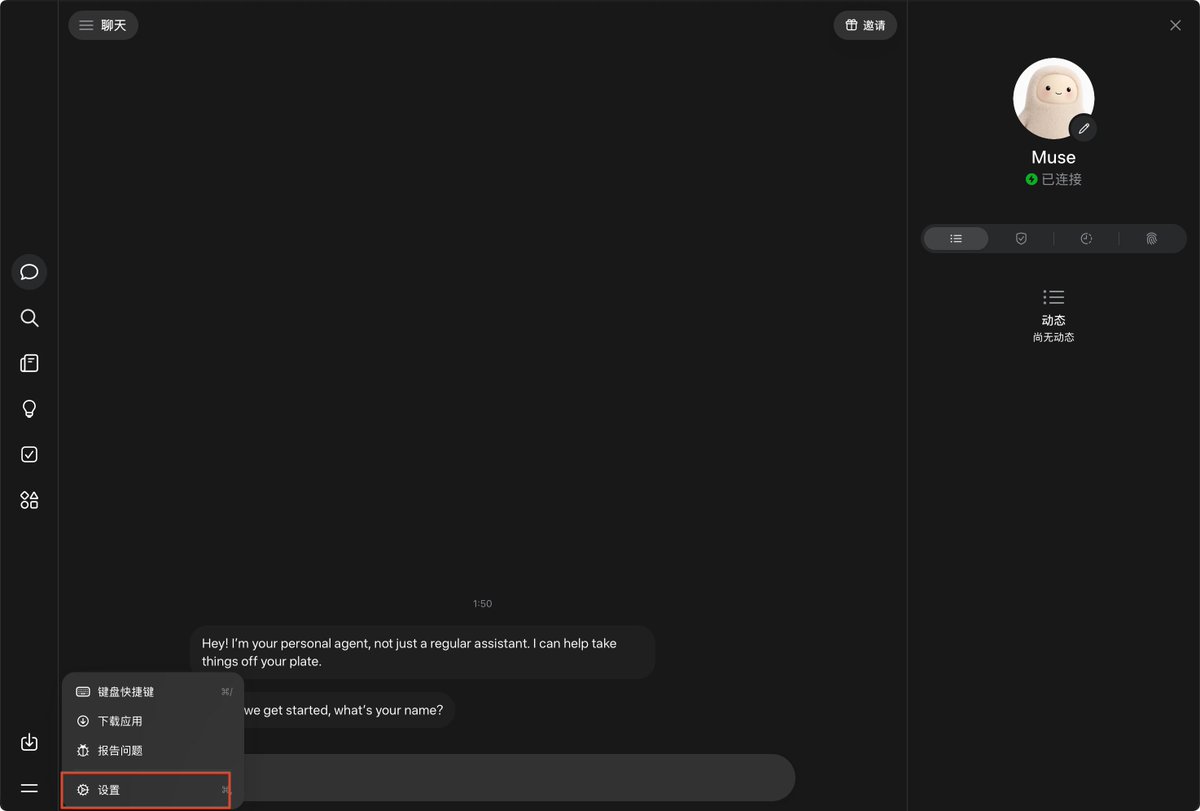
- Open Settings → Account from the bottom-left menu to enter Meta account management.
- Select the account email on Home → email under Default contact info → Add or edit contact info.
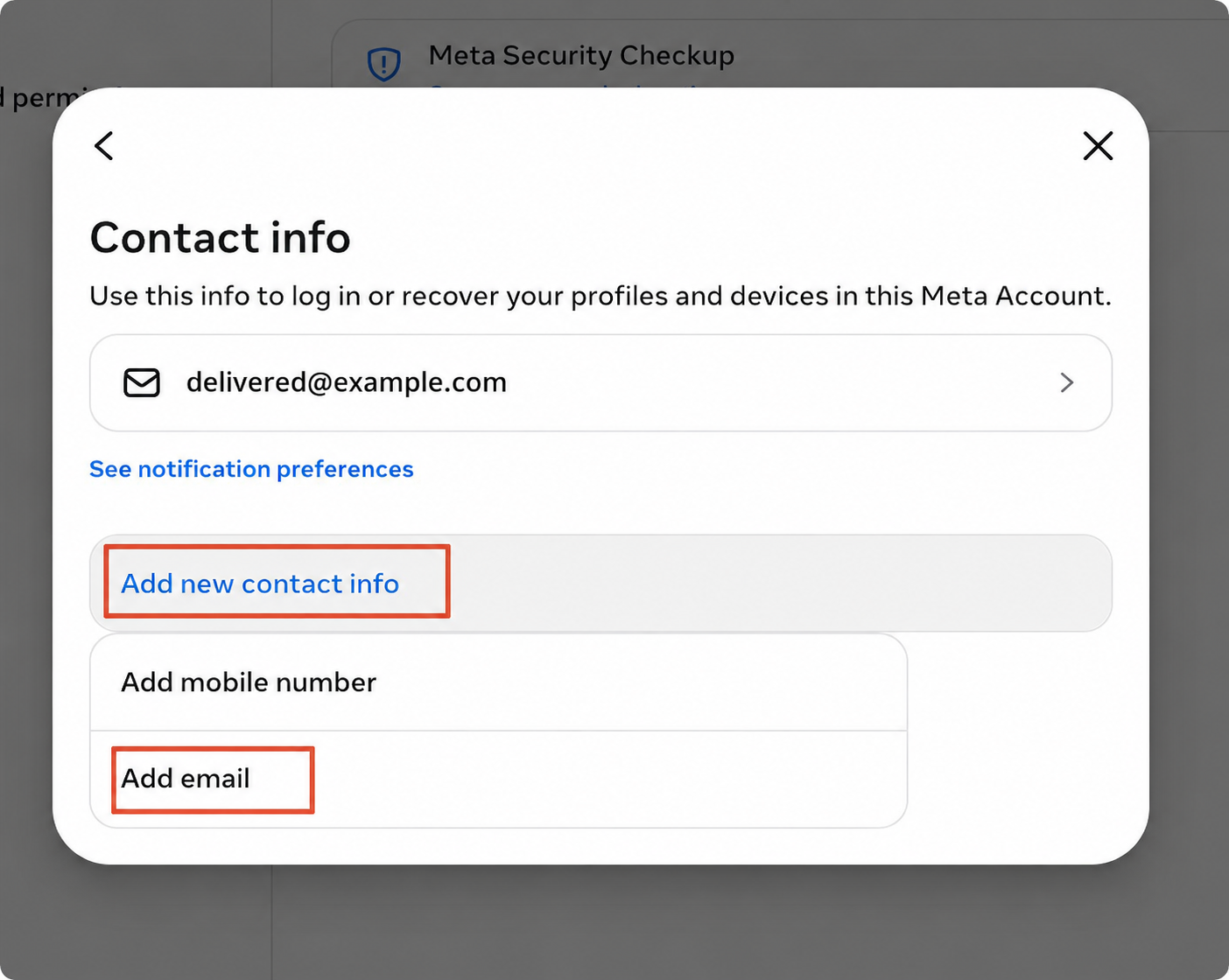
- Select Add new contact info → Add email. Enter an inbox you can access that has not been used for Muse.
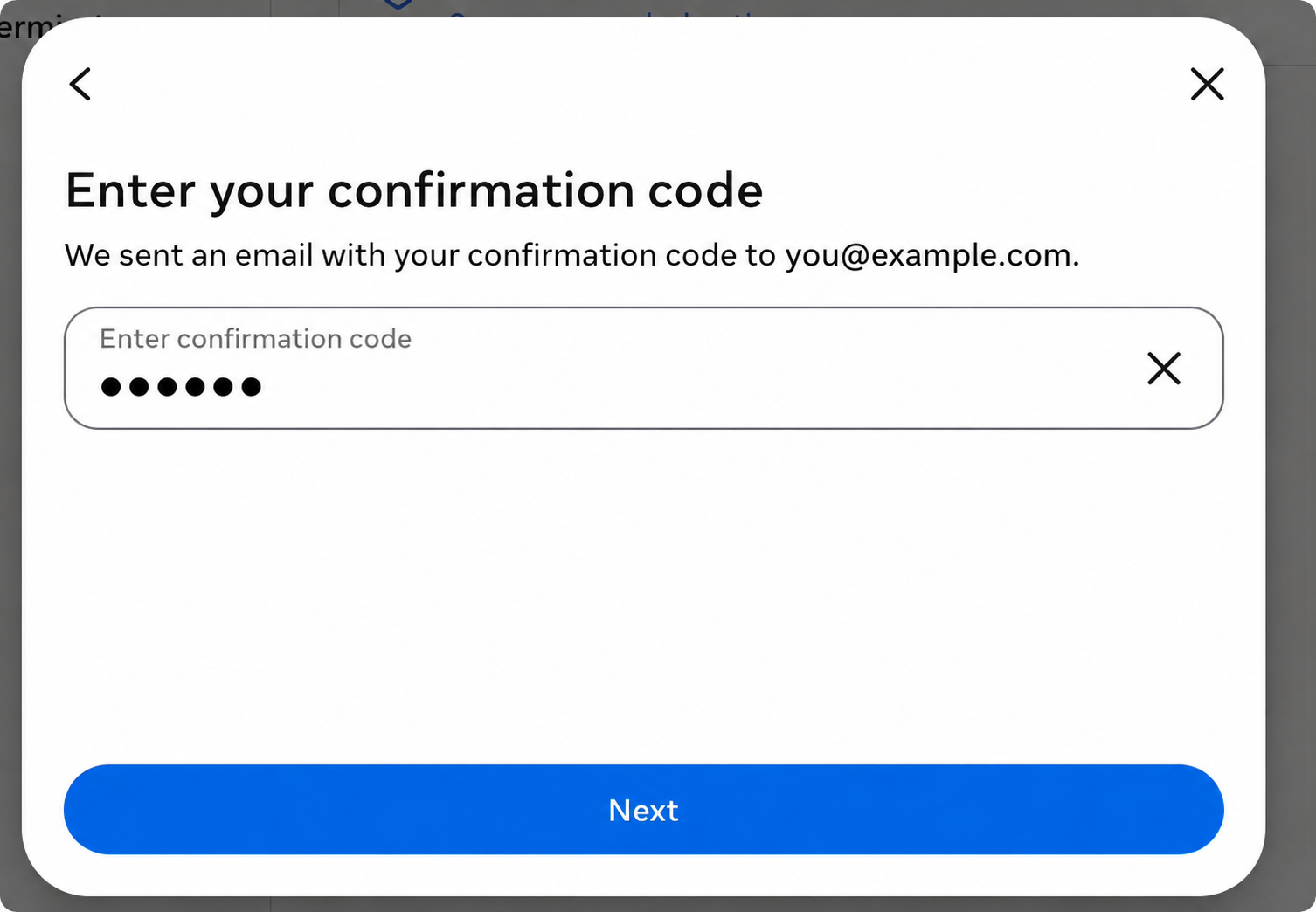
- Copy the latest code from your own inbox, enter it on the page and select Next.
- Check that the new address appears in Contact info. In a new window, confirm it signs in to the same account before continuing.
Select images to enlarge. The details shown are examples; enter your own.
Remove the old temporary email, step by step
Keep your new personal email and remove the old temporary address from your delivery.
First confirm that the new email is verified and can sign in to the same account.
Select images to enlarge. The details shown are examples; enter your own.
Open the account from Home
On the Meta account Home page, select the account email row.
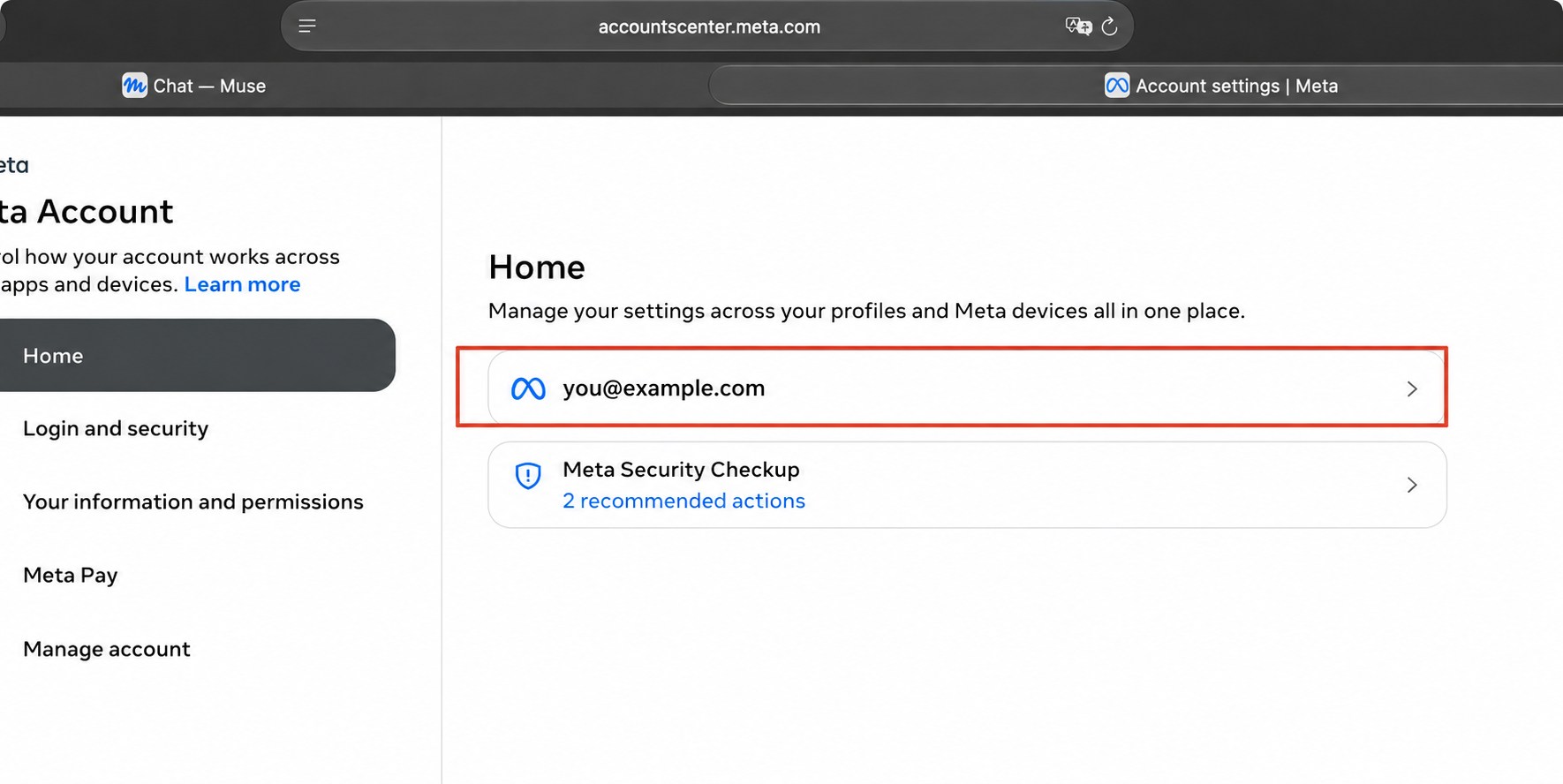
Open Home → account email row. Open Default contact info
In Your account, select the email under Default contact info.
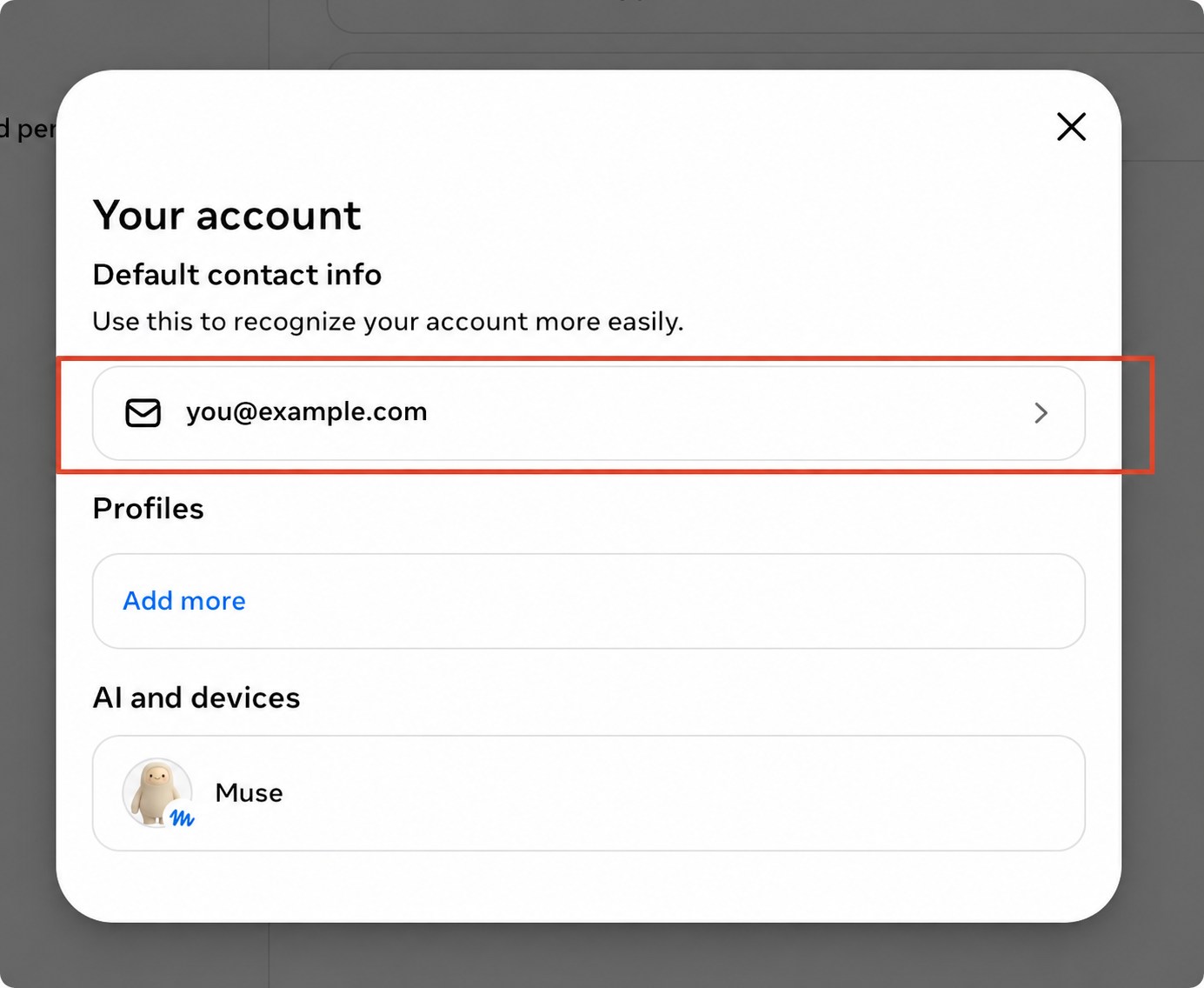
Open Your account → Default contact info. Open the editable contact list
Select Add or edit contact info at the bottom.
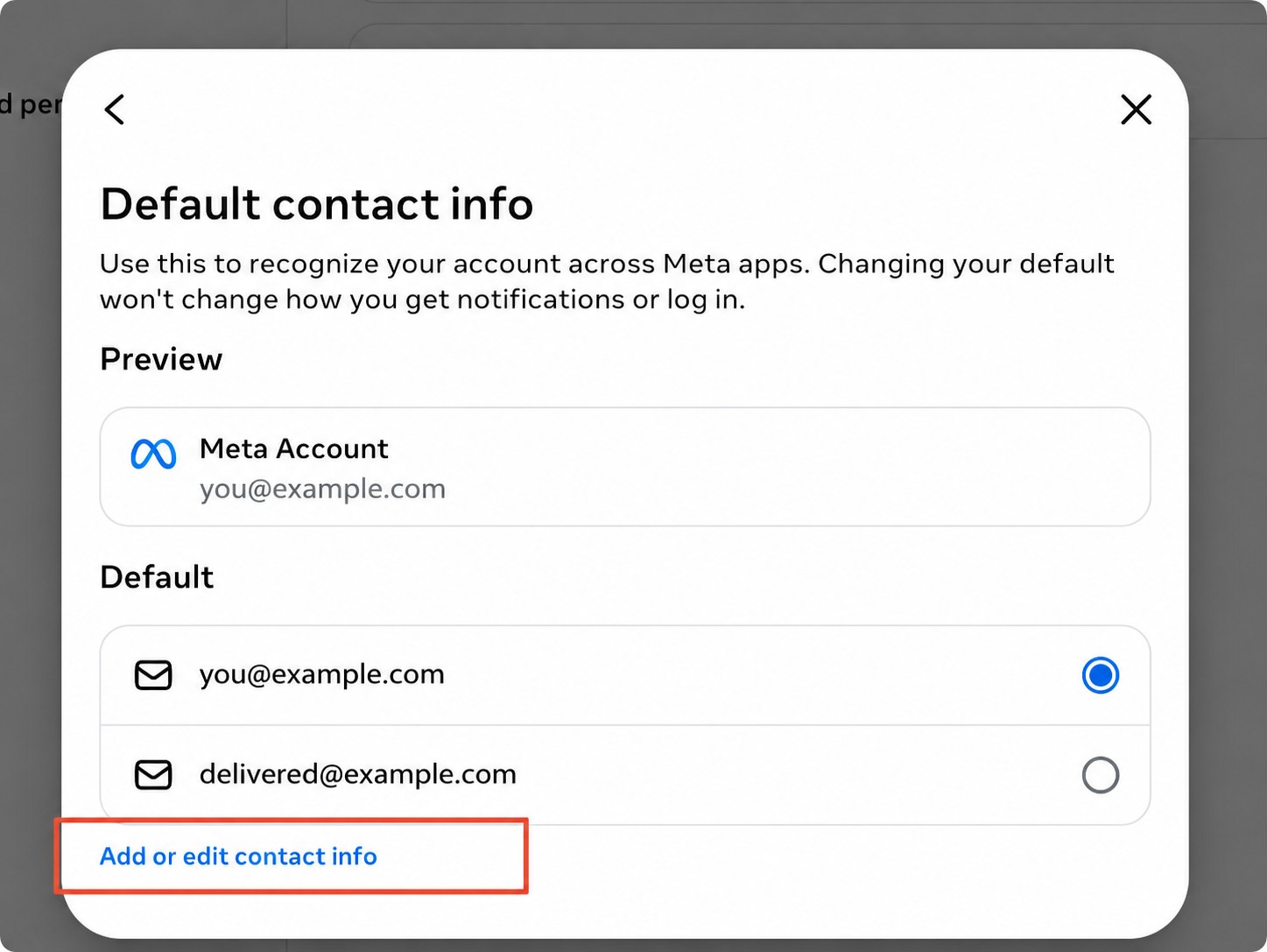
Select the highlighted Add or edit contact info link. Check and select the old email
In Contact info, select the old address matching your order. In the image, keep you@example.com and remove delivered@example.com.
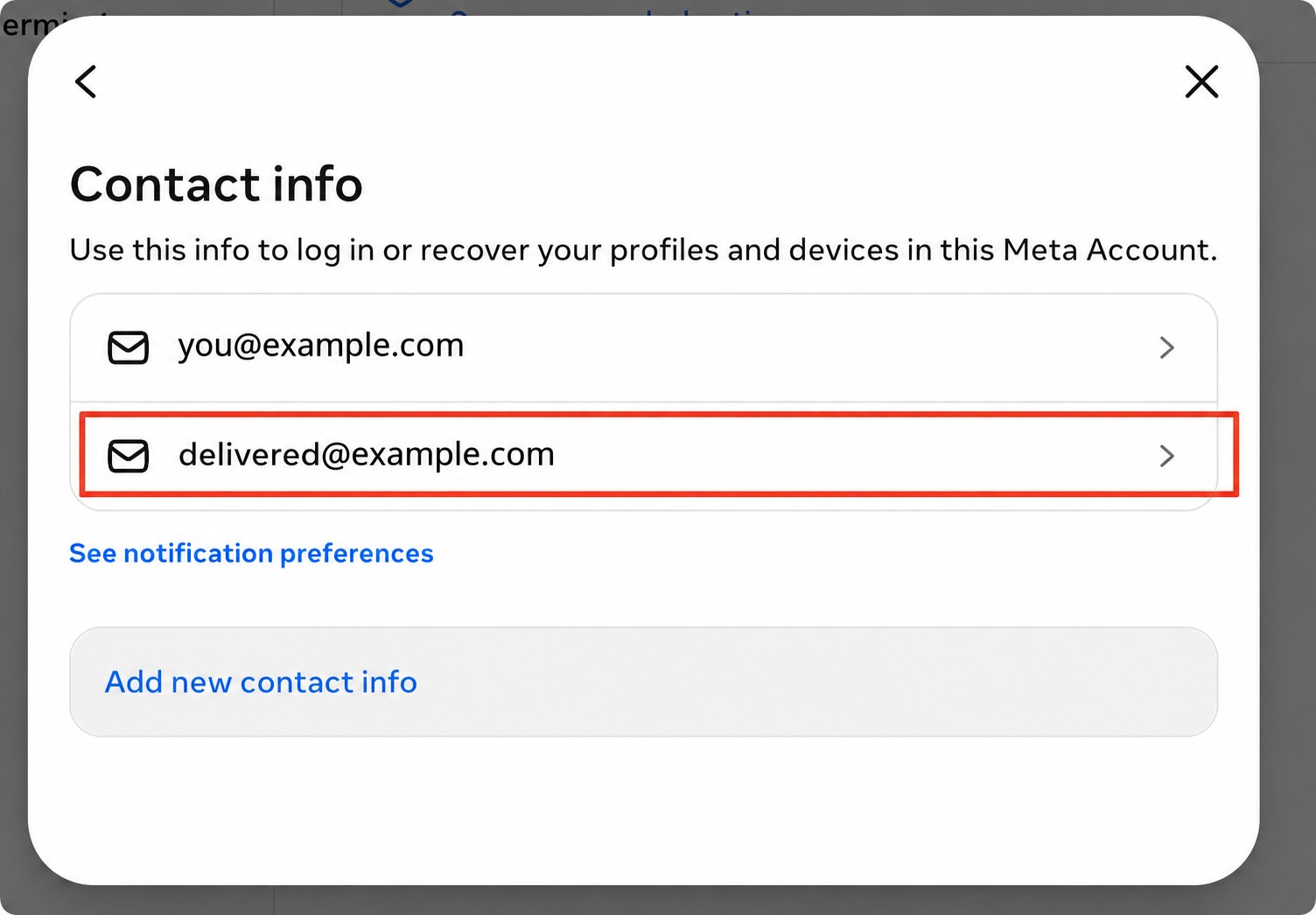
Keep your personal address. Select the address matching your delivery details. Select Delete email
Check that the heading shows the old temporary email, then select Delete email.
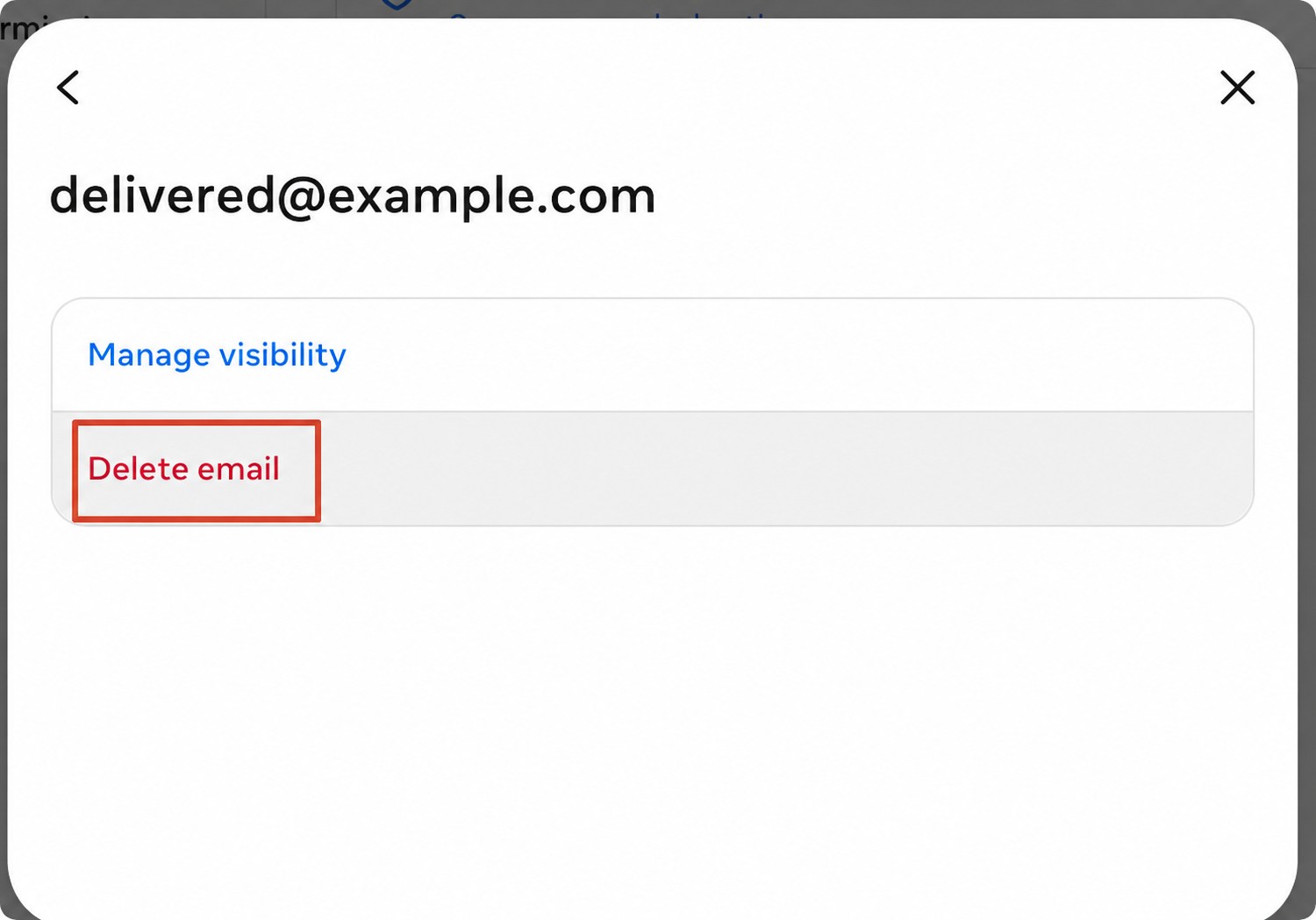
Check the address in the heading before selecting Delete email. Read and confirm removal
Confirm the old address is selected, then choose Delete. If it is wrong, select Cancel. Complete any additional verification shown.
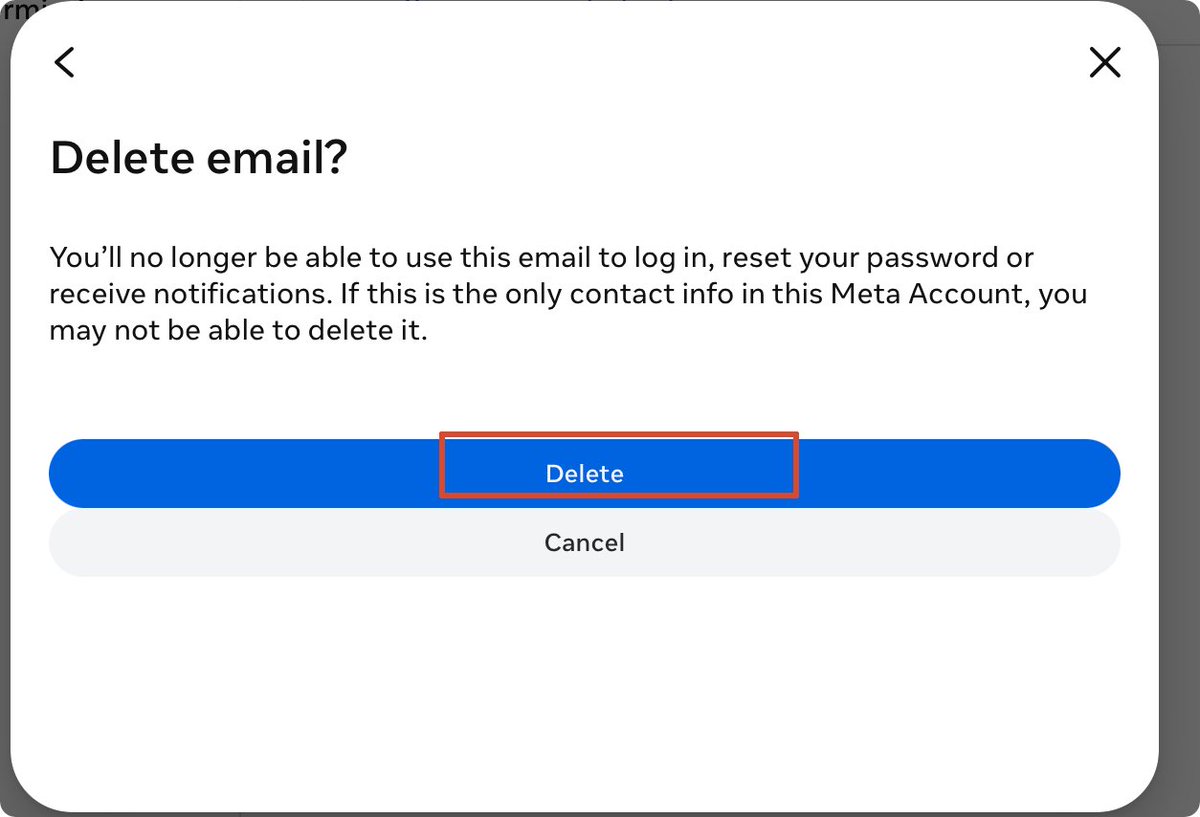
Delete confirms removal; Cancel stops it. Check the selected address first. Check the success message and contact list
After Email deleted appears, check that the old address is absent and the new email remains in the list.
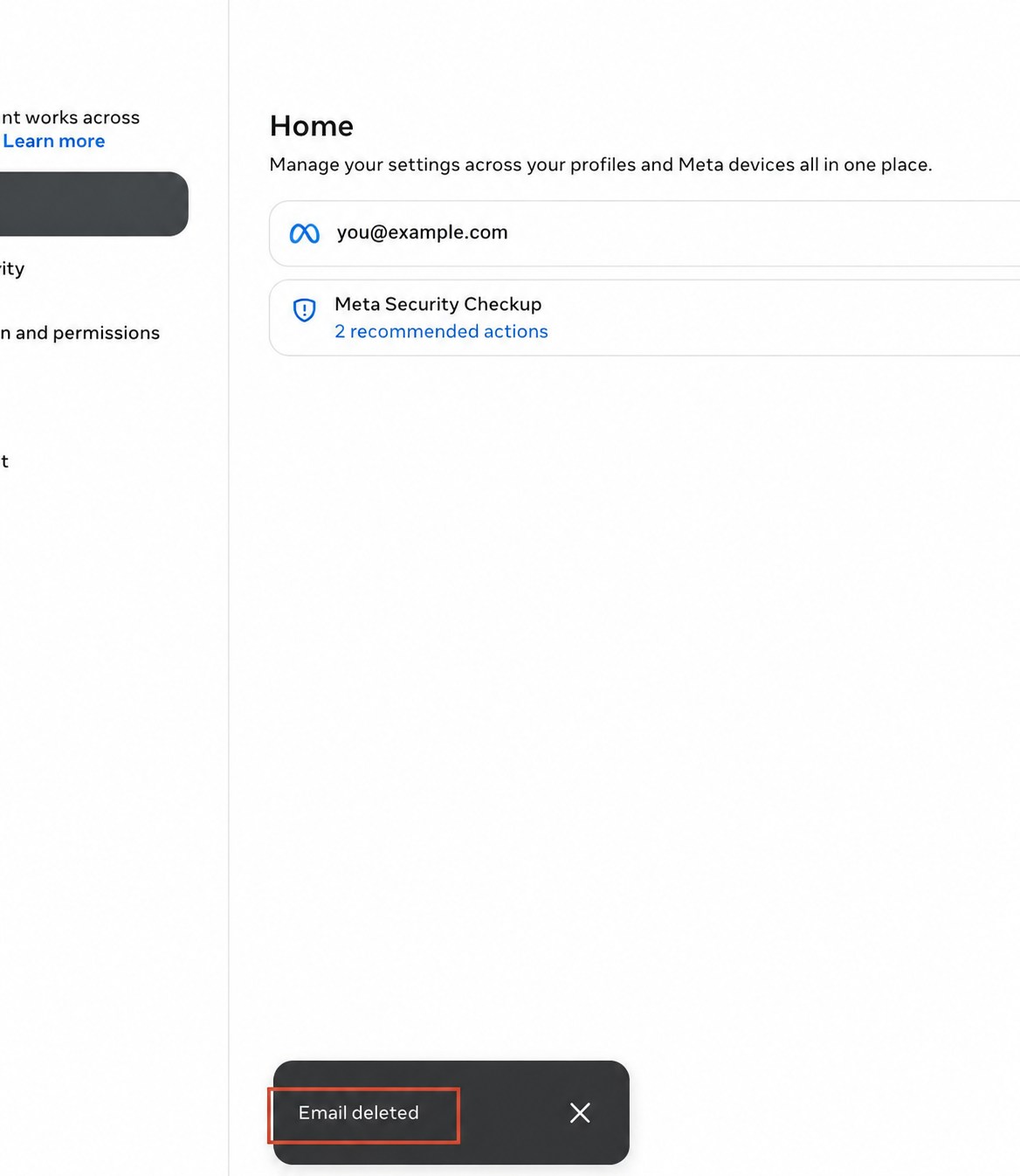
Look for Email deleted, then check the contact list and finish below.
Confirm the email change
- Check that the new email remains and the old address is removed.
- Sign in with your personal email and confirm it is the same Muse account.
- Use your personal email for future sign-ins and keep the order ID for support.
If the new sign-in fails, removal is blocked or no success message appears, keep the current session and contact support.
Troubleshooting
No account after payment?
Refresh the original order and check payment and delivery. Send the order ID to support if it is still missing.
No verification code?
Match the delivered email and check the latest inbox message and spam. Contact support if it still does not arrive.
Cannot see the inbox on mobile?
Scroll down or open the same link on a computer. Contact support if it remains unavailable.
A waitlist or old account appears?
Sign out of the previous account and use the delivered email. Contact support if the message remains.
Which email should I remove?
Keep your newly verified personal email and remove the old temporary address matching the delivery.
Personal email already in use?
Stay in the delivered account and add a different personal email that has not been used for Muse.
Delete email is missing or blocked?
Open the old email’s details and confirm the new email is verified and can sign in. Contact support if removal is still blocked.
The buttons look different?
Send support a screenshot with account details hidden to check the next step.
If you cannot finish these steps, contact support for help.